> ## Documentation Index
> Fetch the complete documentation index at: https://cloud.laravel.com/docs/llms.txt
> Use this file to discover all available pages before exploring further.
# Deployments
> Learn how deployments work in Laravel Cloud, including builds, push to deploy, deploy hooks, and zero-downtime releases.
## Introduction
Deployments in Laravel Cloud happen whenever you have new code to release, new resources to attach, or environment settings that you want to update.
When a new deployment is triggered, Laravel Cloud will take your code and environment settings, build an image configured for your application's runtime and version, and then run your build and deploy commands.
Once your build completes successfully, the existing deployment will be gracefully terminated (allowing any running processes to complete) and the new deployment will be brought online with zero downtime.
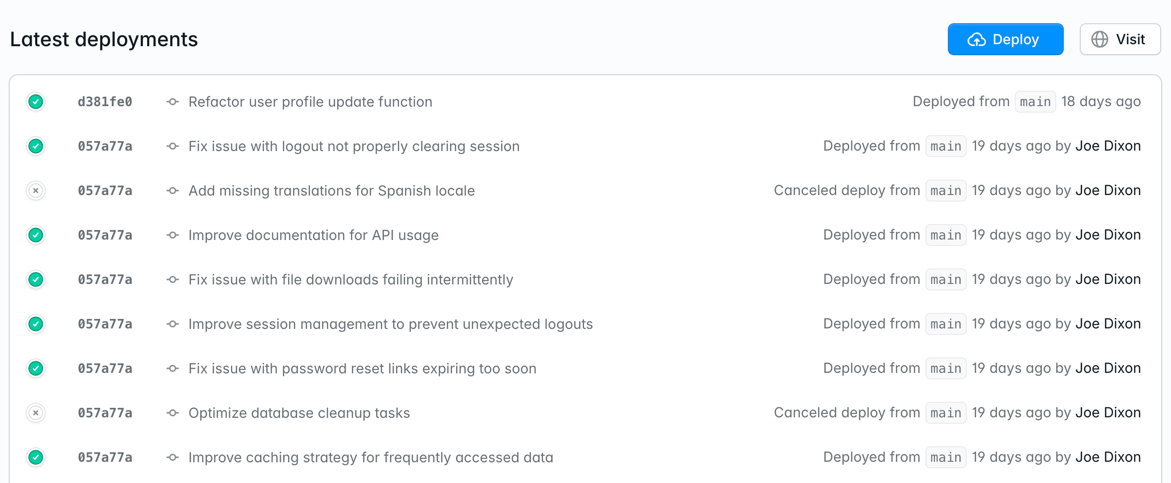 ## Deploy options
### Push to deploy
Every time you push new code to your remote Git branch, a new deploy is automatically triggered. Push to deploy is enabled by default on all environments. To change this setting, go to **Settings > Deployments**.
### Deploy hooks
If you prefer to trigger a deployment via an HTTP endpoint, you can enable the "Deploy hook" option in **Settings > Deployments**. When enabled, you will be provided a URL that you can make a POST request to as part of your CI/CD flow. You can refresh your URL anytime from the Deployments settings.
You can also deploy a specific commit by passing a `commit_hash` query parameter to the deploy hook URL. The commit hash should belong to the branch configured for the environment.
```shell theme={null}
curl -X POST "https://your-deploy-hook-url?commit_hash=abc123def456"
```
If no commit hash is provided, the latest commit from the environment's branch will be deployed.
#### Example using GitHub Actions
Deploy hooks are perfect for integrating Laravel Cloud with your CI / CD pipeline. Here's a complete example using GitHub Actions:
1. First, add your deploy hook URL as a secret in your GitHub repository:
* Go to your GitHub repository settings
* Navigate to Secrets and variables → Actions
* Add a new secret named `LARAVEL_CLOUD_DEPLOY_HOOK` with your deploy hook URL
2. Create a `.github/workflows/deploy.yml` file in your repository:
```yaml theme={null}
name: Deploy to Laravel Cloud
on:
push:
branches: [ main ]
jobs:
deploy:
runs-on: ubuntu-latest
steps:
- name: Deploy to Laravel Cloud
run: |
curl -X POST "${{ secrets.LARAVEL_CLOUD_DEPLOY_HOOK }}?commit_hash=${{ github.sha }}"
```
3. Commit and push the workflow file to trigger your first deployment.
Unlike traditional deployment processes that require installing dependencies and running build commands in CI, Laravel Cloud handles all of this for you. The deploy hook triggers Laravel Cloud to:
* Pull your code from the specified commit
* Run your configured build commands
* Run your configured deploy commands
* Deploy your application with zero downtime
### Manual
You can trigger a deployment from the Laravel Cloud dashboard anytime by clicking the "Deploy" button from the Environment overview page or Deployments page. After updating environment settings, your changes are staged until you deploy them. Review everything that is pending and deploy the batch from the staged changes banner, or use the "Deploy" button at any time.
## Troubleshooting
### Framework or runtime version not supported
Laravel Cloud requires Laravel 9 or greater. In addition, you should be using the latest minor version of the `laravel/framework` Composer package. The minimum minor versions required are:
* Laravel 11: `v11.41.3`
* Laravel 10: `v10.48.28`
* Laravel 9: `v9.52.20`
Watch [this video](https://youtu.be/95iC9L-3CxY) to learn more about fixing this framework error.
If you receive an error during a deployment that *"The \[laravel/framework] package was found in the \[composer.lock] file, but the version is not supported. Upgrade Laravel to the latest minor version"* then you can update by running the following command:
```shell theme={null}
composer update laravel/framework
```
Laravel Cloud requires Symfony 7.4 LTS or 8.x. Ensure your `composer.json` specifies a compatible version and that your `composer.lock` is up to date:
```shell theme={null}
composer update symfony/framework-bundle
```
Next.js applications can run on any [supported Node.js, Bun, or Deno version](/docs/runtimes#node-js-bun-and-deno). If you're using Node.js, ensure your `package.json` specifies a compatible engine:
```json theme={null}
{
"engines": {
"node": ">=20"
}
}
```
Bun and Deno run on a fixed version, so no `engines` configuration is needed for those runtimes.
Nuxt applications can run on any [supported Node.js, Bun, or Deno version](/docs/runtimes#node-js-bun-and-deno). If you're using Node.js, ensure your `package.json` specifies a compatible engine:
```json theme={null}
{
"engines": {
"node": ">=20"
}
}
```
Bun and Deno run on a fixed version, so no `engines` configuration is needed for those runtimes.
JavaScript applications, including Express and Hono, can run on any [supported Node.js, Bun, or Deno version](/docs/runtimes#node-js-bun-and-deno). If you're using Node.js, ensure your `package.json` specifies a compatible engine:
```json theme={null}
{
"engines": {
"node": ">=20"
}
}
```
Bun and Deno run on a fixed version, so no `engines` configuration is needed for those runtimes.
Laravel Cloud reads the `go` directive in your `go.mod` file and uses the lowest supported version that satisfies it. If no supported version satisfies the directive, the deployment fails before building. Update the `go` directive to a version listed in [Runtimes](/docs/runtimes#go):
```text theme={null}
go 1.25
```
Laravel Cloud reads your Python version from a `.python-version` file or, when that file does not declare a version, the `requires-python` constraint in `pyproject.toml`. If the pinned version is unsupported, or no supported version satisfies the constraint, the deployment fails before building. Update your declaration to a version listed in [Runtimes](/docs/runtimes#python):
```toml theme={null}
[project]
requires-python = ">=3.12"
```
A version declared in your repository takes precedence over the version selected in your environment settings.
### Deployment succeeds but serves no traffic
Laravel Cloud's proxy, which runs alongside your application in each instance, routes traffic to your application on the port set by the `PORT` environment variable (`3000` by default, or the port you chose when creating the application). Ensure that your Express, Hono, or other JavaScript application reads `PORT` rather than listening on a hardcoded port.
Laravel Cloud's proxy, which runs alongside your application in each instance, routes traffic to your application on the port set by the `PORT` environment variable (`3000` by default, or the port you chose when creating the application). The default start command, `next start`, reads `PORT` automatically, so this works out of the box for most applications.
If you've overridden the start command with a custom server (for example, a `server.js` file using Express), the build can succeed even if that server listens on a different, hardcoded port. Laravel Cloud has no way to detect this, so the deployment goes live without routing any traffic to your application.
Make sure your custom server reads the `PORT` environment variable rather than hardcoding a port number.
Laravel Cloud starts Nuxt applications with Nitro's default `node-server` preset (`.output/server/index.mjs`). If your `nuxt.config` still sets a host-specific `nitro.preset` (for example, `vercel`, `netlify`, or `cloudflare`) left over from a previous provider, or a `NITRO_PRESET` environment variable is set, Nitro builds output for that host instead (such as `.vercel/output`). The build completes without error, but Laravel Cloud has no way to serve that output, so the deployment goes live without routing any traffic to your application.
Remove the `nitro.preset` option and any `NITRO_PRESET` environment variable so Nitro can auto-detect the `node-server` preset.
Laravel Cloud's proxy, which runs alongside your application in each instance, routes traffic to your application on the port set by the `PORT` environment variable (`3000` by default). If your application binds to a hardcoded port instead of reading `PORT`, the build and deployment can both succeed, but the deployment goes live without routing any traffic to your application.
Make sure your application reads the `PORT` environment variable rather than hardcoding a port number.
Laravel Cloud's proxy, which runs alongside your application in each instance, routes traffic to your application on the port set by the `PORT` environment variable (`3000` by default). The default start commands for Django, FastAPI, and Flask all read `$PORT`, so this works out of the box unless you've overridden the start command with something that hardcodes a port.
Make sure your start command reads the `PORT` environment variable rather than hardcoding a port number.
### Build or start command not configured
Go applications require an explicit build command, since Laravel Cloud has no default way to compile a Go module on your behalf. Go, Python, and JavaScript applications require an explicit start command, since Laravel Cloud has no framework-provided way to run them.
Laravel Cloud pre-fills a sensible default for each of these when it first detects your application, so this typically only surfaces if you've since cleared the field. If a required command is blank, the deployment fails immediately with *"The environment has no build command configured"* or *"The environment has no start command configured."* For a Go application, restore a build command such as:
```shell theme={null}
CGO_ENABLED=0 go build -trimpath -ldflags="-s -w" -o app .
```
### Django start command still has the `` placeholder
Laravel Cloud discovers your Django project's WSGI module from your repository and pre-fills the start command with it. When the module can't be discovered, the start command falls back to a `` placeholder:
```shell theme={null}
gunicorn .wsgi --bind [::]:$PORT
```
Replace `` with your Django project's settings module name (the directory containing `wsgi.py`) before deploying. If the placeholder is still there when you deploy, the deployment fails with *"The start command still contains the `` placeholder. Replace `` with your Django project's module name."*
## Deploy options
### Push to deploy
Every time you push new code to your remote Git branch, a new deploy is automatically triggered. Push to deploy is enabled by default on all environments. To change this setting, go to **Settings > Deployments**.
### Deploy hooks
If you prefer to trigger a deployment via an HTTP endpoint, you can enable the "Deploy hook" option in **Settings > Deployments**. When enabled, you will be provided a URL that you can make a POST request to as part of your CI/CD flow. You can refresh your URL anytime from the Deployments settings.
You can also deploy a specific commit by passing a `commit_hash` query parameter to the deploy hook URL. The commit hash should belong to the branch configured for the environment.
```shell theme={null}
curl -X POST "https://your-deploy-hook-url?commit_hash=abc123def456"
```
If no commit hash is provided, the latest commit from the environment's branch will be deployed.
#### Example using GitHub Actions
Deploy hooks are perfect for integrating Laravel Cloud with your CI / CD pipeline. Here's a complete example using GitHub Actions:
1. First, add your deploy hook URL as a secret in your GitHub repository:
* Go to your GitHub repository settings
* Navigate to Secrets and variables → Actions
* Add a new secret named `LARAVEL_CLOUD_DEPLOY_HOOK` with your deploy hook URL
2. Create a `.github/workflows/deploy.yml` file in your repository:
```yaml theme={null}
name: Deploy to Laravel Cloud
on:
push:
branches: [ main ]
jobs:
deploy:
runs-on: ubuntu-latest
steps:
- name: Deploy to Laravel Cloud
run: |
curl -X POST "${{ secrets.LARAVEL_CLOUD_DEPLOY_HOOK }}?commit_hash=${{ github.sha }}"
```
3. Commit and push the workflow file to trigger your first deployment.
Unlike traditional deployment processes that require installing dependencies and running build commands in CI, Laravel Cloud handles all of this for you. The deploy hook triggers Laravel Cloud to:
* Pull your code from the specified commit
* Run your configured build commands
* Run your configured deploy commands
* Deploy your application with zero downtime
### Manual
You can trigger a deployment from the Laravel Cloud dashboard anytime by clicking the "Deploy" button from the Environment overview page or Deployments page. After updating environment settings, your changes are staged until you deploy them. Review everything that is pending and deploy the batch from the staged changes banner, or use the "Deploy" button at any time.
## Troubleshooting
### Framework or runtime version not supported
Laravel Cloud requires Laravel 9 or greater. In addition, you should be using the latest minor version of the `laravel/framework` Composer package. The minimum minor versions required are:
* Laravel 11: `v11.41.3`
* Laravel 10: `v10.48.28`
* Laravel 9: `v9.52.20`
Watch [this video](https://youtu.be/95iC9L-3CxY) to learn more about fixing this framework error.
If you receive an error during a deployment that *"The \[laravel/framework] package was found in the \[composer.lock] file, but the version is not supported. Upgrade Laravel to the latest minor version"* then you can update by running the following command:
```shell theme={null}
composer update laravel/framework
```
Laravel Cloud requires Symfony 7.4 LTS or 8.x. Ensure your `composer.json` specifies a compatible version and that your `composer.lock` is up to date:
```shell theme={null}
composer update symfony/framework-bundle
```
Next.js applications can run on any [supported Node.js, Bun, or Deno version](/docs/runtimes#node-js-bun-and-deno). If you're using Node.js, ensure your `package.json` specifies a compatible engine:
```json theme={null}
{
"engines": {
"node": ">=20"
}
}
```
Bun and Deno run on a fixed version, so no `engines` configuration is needed for those runtimes.
Nuxt applications can run on any [supported Node.js, Bun, or Deno version](/docs/runtimes#node-js-bun-and-deno). If you're using Node.js, ensure your `package.json` specifies a compatible engine:
```json theme={null}
{
"engines": {
"node": ">=20"
}
}
```
Bun and Deno run on a fixed version, so no `engines` configuration is needed for those runtimes.
JavaScript applications, including Express and Hono, can run on any [supported Node.js, Bun, or Deno version](/docs/runtimes#node-js-bun-and-deno). If you're using Node.js, ensure your `package.json` specifies a compatible engine:
```json theme={null}
{
"engines": {
"node": ">=20"
}
}
```
Bun and Deno run on a fixed version, so no `engines` configuration is needed for those runtimes.
Laravel Cloud reads the `go` directive in your `go.mod` file and uses the lowest supported version that satisfies it. If no supported version satisfies the directive, the deployment fails before building. Update the `go` directive to a version listed in [Runtimes](/docs/runtimes#go):
```text theme={null}
go 1.25
```
Laravel Cloud reads your Python version from a `.python-version` file or, when that file does not declare a version, the `requires-python` constraint in `pyproject.toml`. If the pinned version is unsupported, or no supported version satisfies the constraint, the deployment fails before building. Update your declaration to a version listed in [Runtimes](/docs/runtimes#python):
```toml theme={null}
[project]
requires-python = ">=3.12"
```
A version declared in your repository takes precedence over the version selected in your environment settings.
### Deployment succeeds but serves no traffic
Laravel Cloud's proxy, which runs alongside your application in each instance, routes traffic to your application on the port set by the `PORT` environment variable (`3000` by default, or the port you chose when creating the application). Ensure that your Express, Hono, or other JavaScript application reads `PORT` rather than listening on a hardcoded port.
Laravel Cloud's proxy, which runs alongside your application in each instance, routes traffic to your application on the port set by the `PORT` environment variable (`3000` by default, or the port you chose when creating the application). The default start command, `next start`, reads `PORT` automatically, so this works out of the box for most applications.
If you've overridden the start command with a custom server (for example, a `server.js` file using Express), the build can succeed even if that server listens on a different, hardcoded port. Laravel Cloud has no way to detect this, so the deployment goes live without routing any traffic to your application.
Make sure your custom server reads the `PORT` environment variable rather than hardcoding a port number.
Laravel Cloud starts Nuxt applications with Nitro's default `node-server` preset (`.output/server/index.mjs`). If your `nuxt.config` still sets a host-specific `nitro.preset` (for example, `vercel`, `netlify`, or `cloudflare`) left over from a previous provider, or a `NITRO_PRESET` environment variable is set, Nitro builds output for that host instead (such as `.vercel/output`). The build completes without error, but Laravel Cloud has no way to serve that output, so the deployment goes live without routing any traffic to your application.
Remove the `nitro.preset` option and any `NITRO_PRESET` environment variable so Nitro can auto-detect the `node-server` preset.
Laravel Cloud's proxy, which runs alongside your application in each instance, routes traffic to your application on the port set by the `PORT` environment variable (`3000` by default). If your application binds to a hardcoded port instead of reading `PORT`, the build and deployment can both succeed, but the deployment goes live without routing any traffic to your application.
Make sure your application reads the `PORT` environment variable rather than hardcoding a port number.
Laravel Cloud's proxy, which runs alongside your application in each instance, routes traffic to your application on the port set by the `PORT` environment variable (`3000` by default). The default start commands for Django, FastAPI, and Flask all read `$PORT`, so this works out of the box unless you've overridden the start command with something that hardcodes a port.
Make sure your start command reads the `PORT` environment variable rather than hardcoding a port number.
### Build or start command not configured
Go applications require an explicit build command, since Laravel Cloud has no default way to compile a Go module on your behalf. Go, Python, and JavaScript applications require an explicit start command, since Laravel Cloud has no framework-provided way to run them.
Laravel Cloud pre-fills a sensible default for each of these when it first detects your application, so this typically only surfaces if you've since cleared the field. If a required command is blank, the deployment fails immediately with *"The environment has no build command configured"* or *"The environment has no start command configured."* For a Go application, restore a build command such as:
```shell theme={null}
CGO_ENABLED=0 go build -trimpath -ldflags="-s -w" -o app .
```
### Django start command still has the `` placeholder
Laravel Cloud discovers your Django project's WSGI module from your repository and pre-fills the start command with it. When the module can't be discovered, the start command falls back to a `` placeholder:
```shell theme={null}
gunicorn .wsgi --bind [::]:$PORT
```
Replace `` with your Django project's settings module name (the directory containing `wsgi.py`) before deploying. If the placeholder is still there when you deploy, the deployment fails with *"The start command still contains the `` placeholder. Replace `` with your Django project's module name."*